
You can have the prettiest Squarespace website on the internet. Gorgeous branding. Dreamy photos. Keywords sprinkled in all the right places.
But if your site takes forever to load? Google is basically saying, "Cute... but no."
A slow website can quietly push you down in your customers’ Google search results… even if you've done everything else right.
Why Page Speed Matters For Squarespace SEO
Google wants to send people to sites that actually work — fast, mobile-friendly, frustration-free. If your site takes forever to load, people bounce before they even see your gorgeous homepage, and Google notices.
High bounce rates + slow load times = Google quietly moving you down the results page.
Thankfully, improving your Squarespace site’s speed is pretty simple. There are three main culprits we almost always check first (and we’ve built 850+ custom sites).
3 Ways to Increase Your Page Speed
1. Optimize Your Image Sizes
If we had to guess what's slowing down your website... It's probably your images.
Every photo you upload to your website has a file size. The larger the file, the longer it takes your website to load.
Think of it like trying to email someone a giant folder of vacation photos versus sending just a few. One gets there almost instantly. The other... takes a while. The same thing happens on your website.
We recommend keeping every image on your website under 500KB whenever possible. Here’s how to make sure all images on your site aren’t increasing your page load time.
Step 1: Find the Large Images on Your Website
Before you start resizing anything, you'll want to figure out which images are actually slowing down your site.
You have two easy options:
Option 1 (Our Favorite): Use SEOSpace
SEOSpace will scan your Squarespace website and tell you exactly which images are too large, so you know what to fix first.
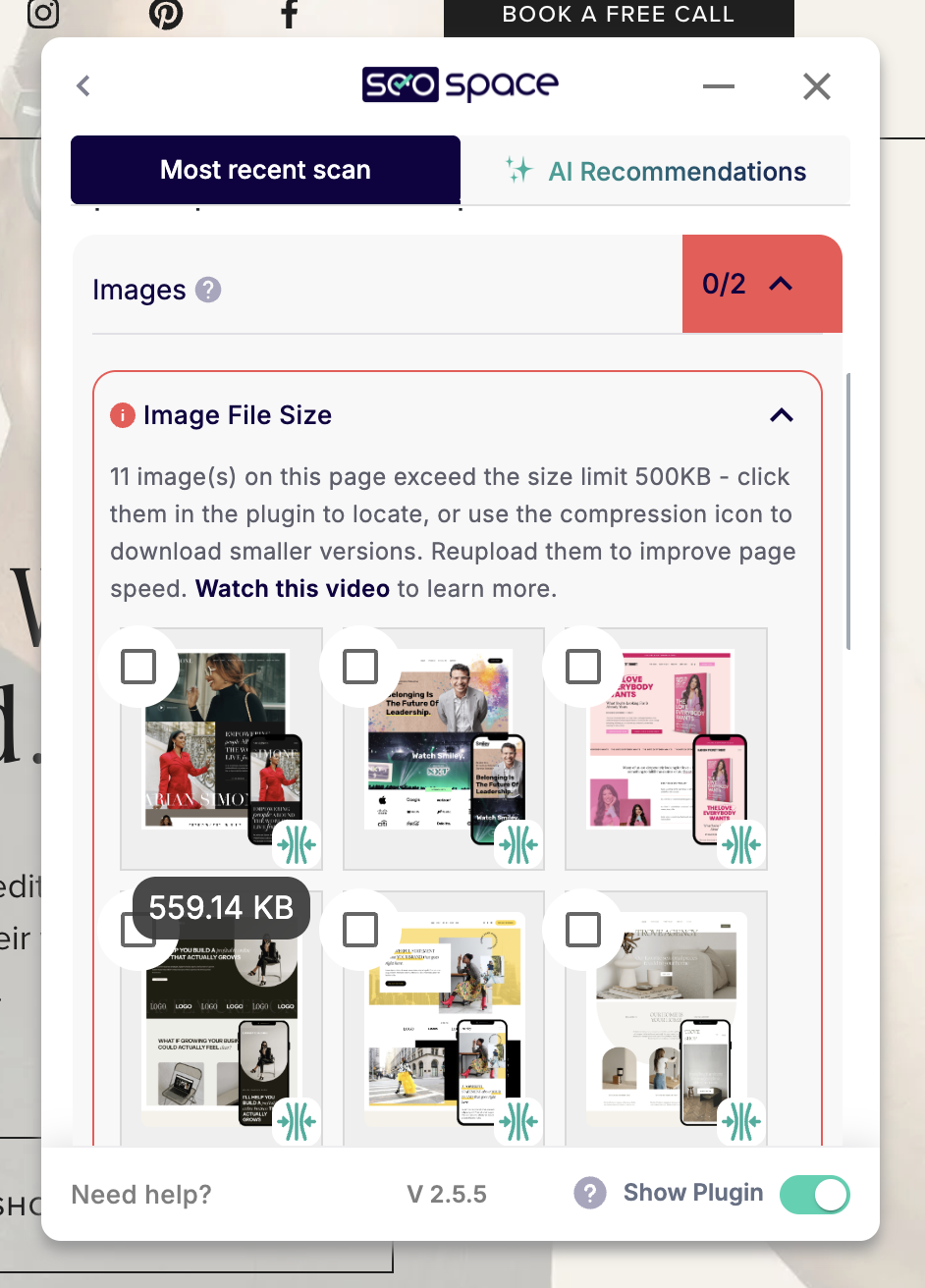
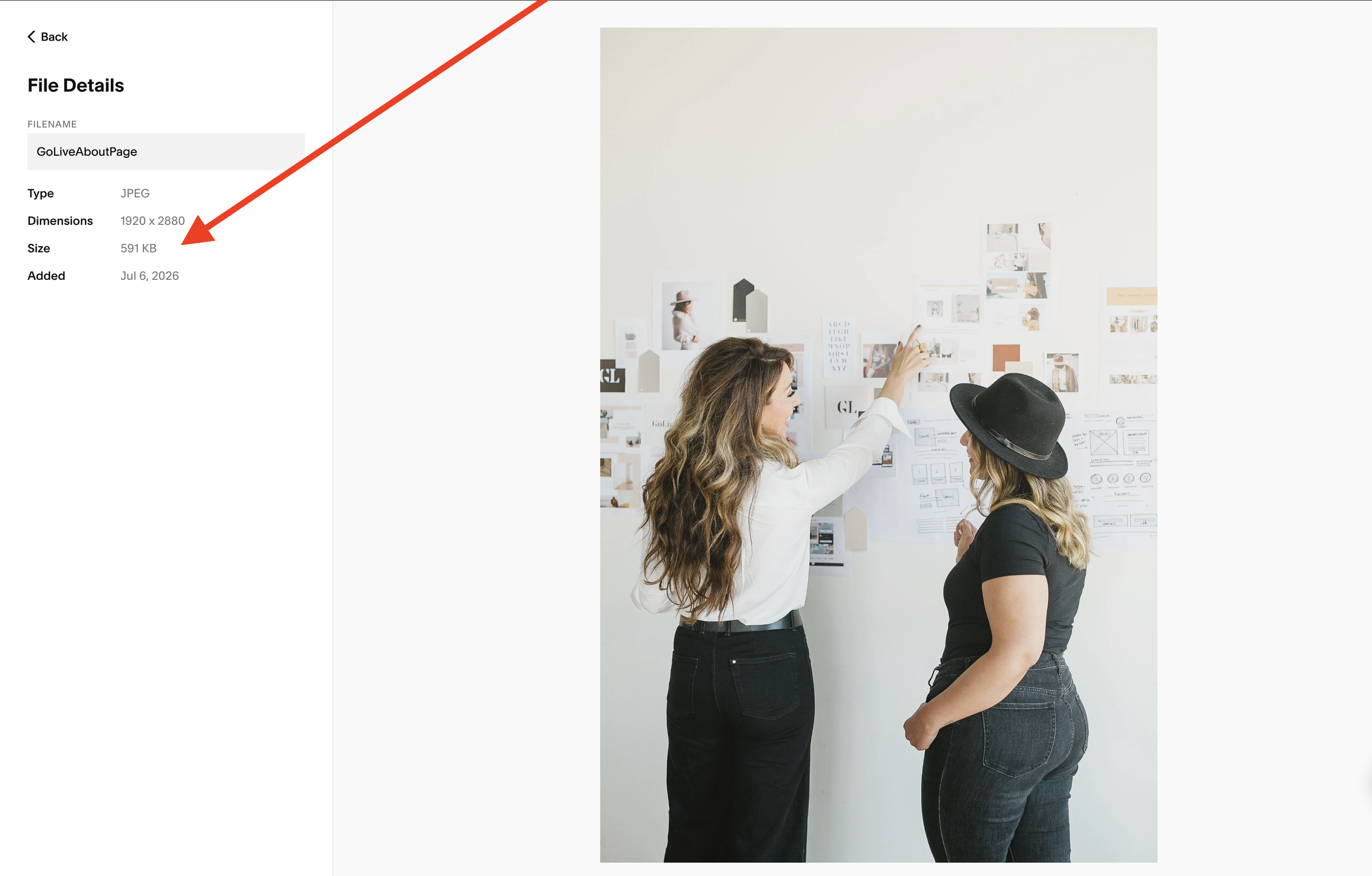
Option 2: Check Inside Squarespace
In your Squarespace website, go to Assets → click on an image → and you'll see the file size listed in the left sidebar.
Step 2: Resize Your Images
We love using Imagy.App's Bulk Image Resizer, but Photoshop, TinyPNG, or any image compression tool you're comfortable with will work.
When resizing your images, use these settings:
File Type: JPG (only use PNG if your image needs a transparent background, like a logo)
Target File Size: Around 500KB
Once your images are compressed, upload the new versions into the same image blocks on your website to replace the originals.
That's it!
Spending 10–15 minutes optimizing your images can make a noticeable difference in how quickly your website loads. Faster pages create a better experience for your visitors—and they're one more signal that tells Google your site deserves to rank higher.
2. Optimize Your Video Sizes
Video is heavy — like, really heavy — and if you're not optimizing it, it will absolutely tank your page speed. The two biggest mistakes we see? Uploading massive raw video files straight to Squarespace, and auto-playing video on the homepage. Both are speed killers.
Here's how to fix it:
Keep file sizes reasonable. Compress your video before uploading — aim for under 100MB when possible. HandBrake is a great free tool for this that won't tank your quality.
Add a custom thumbnail. When you drop a video block into Squarespace, always upload a custom thumbnail image. This way, visitors see a fast-loading static image first, and the video only loads once they hit play. Skip this step, and Squarespace loads the entire video file immediately — slowing everything down.
To add one: click your video block → Design → Thumbnail → upload a compressed JPG.
Upload natively to Squarespace instead of embedding from YouTube or Vimeo when you can. Native uploads give you more control and, paired with a custom thumbnail, often load faster.
Skip the autoplay. We get it, it looks cool. But it destroys your page speed and chews through your visitors' mobile data. If you absolutely must autoplay, keep it short and heavily compressed.
3. Remove Unnecessary Scripts
Every third-party script, plugin, or code snippet you've added to your site is another request your page has to load before it can show up for your visitor. Tracking pixels, chat widgets, random embeds — they all add up, and we work with business owners all the time who have no idea how much bloat they've accumulated over time.
Time for an audit. Head to your Squarespace site Settings → Advanced → Code Injection and CSS, and go through everything that's currently living there.
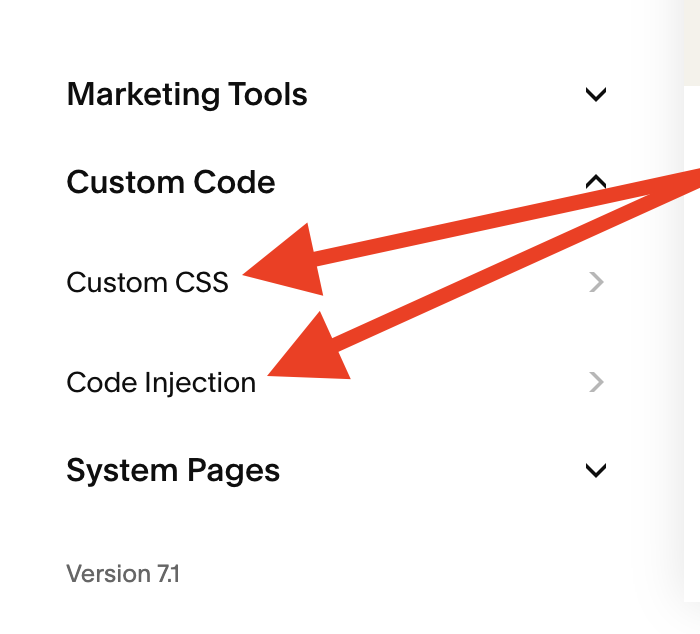
For each one, ask yourself:
Am I actually using this tool?
Is this script essential for my business?
Can I combine multiple tools into one platform instead of running five different ones?
Be honest with yourself here. If you can't remember why a script is there, it's probably safe to cut.
Page speed isn't the most glamorous part of building your website. It's not as exciting as writing your copy or finding the perfect keywords. But it is one of the fastest ways to improve both your Google rankings and your visitors' experience.
So this afternoon, grab a coffee and spend 30 minutes:
Resizing your images.
Optimizing your videos.
Deleting unnecessary scripts
Your site is beautiful. Now let's make sure it loads fast enough for people to actually see it.
Need more SEO help? You might like these (FREE) SEO guides:
